
Most format guides explain PNG, JPG and WebP and leave you to work out which one your file needs. This one goes the other way round: find your situation, get the answer.
If you want the reasoning behind the recommendations — what compression actually discards, why PNG is wrong for photos — that's in How to Compress Images Without Losing Quality. This page is the lookup table.
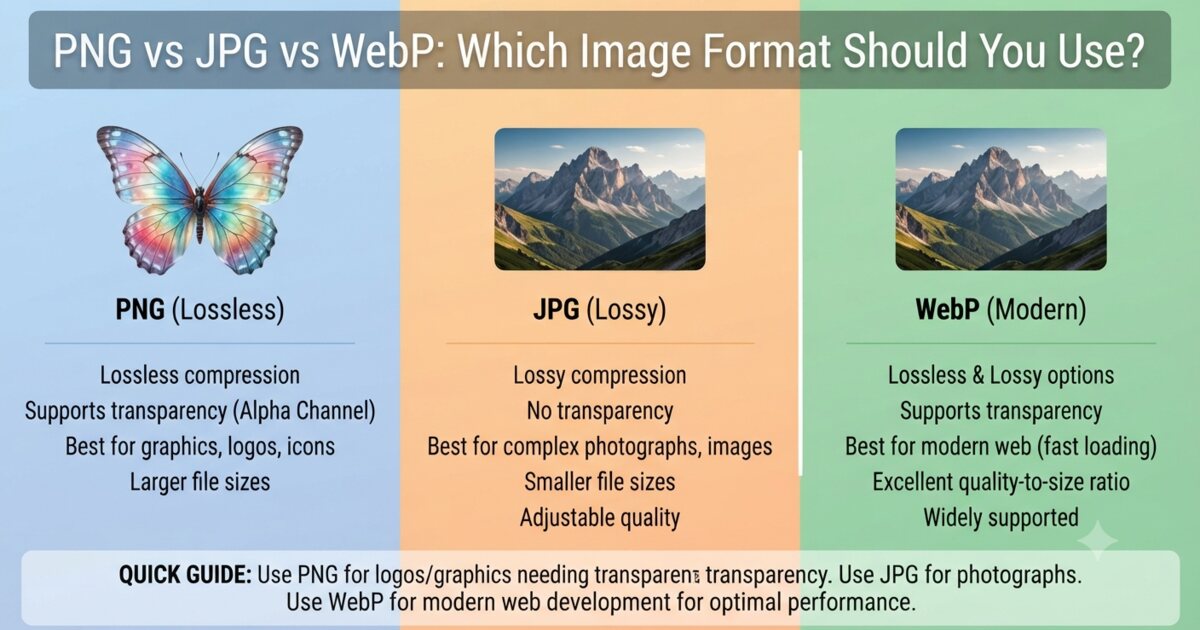
Find your situation
"I have a logo with a transparent background"
Keep it PNG. Add a WebP copy for the web.
Transparency rules out JPG entirely — it has no alpha channel, so a transparent background becomes solid white. PNG and WebP both support it; WebP is usually 25–35% smaller at the same quality.
Serve WebP where you can, keep the PNG for anything that needs it (email signatures, older design software, print suppliers). → PNG to WebP
"I have a photo saved as PNG"
Convert to JPG or WebP. This is the single biggest easy win.
A photograph stored as PNG is often 5–10× larger than it needs to be, because lossless compression has nothing to exploit in a photo's continuous gradients. This happens constantly — screenshot tools, some export dialogs and a lot of AI image generators all default to PNG.
"I have a screenshot with text in it"
PNG. Not JPG.
Lossy compression handles hard edges badly. Text in a JPEG gets a faint halo of noise around each letter, and small type becomes genuinely harder to read. PNG keeps it crisp.
The exception is a screenshot that's mostly photographic content with little text — then JPG is fine. → JPG to PNG
"Someone sent me a .heic file and nothing will open it"
Convert to JPG.
HEIC is what iPhones save by default. Compression is excellent, compatibility outside Apple is poor — Windows often needs a paid codec, and plenty of web forms reject it outright.
"I'm uploading product photos to an online store"
JPG, resized first.
Most storefronts re-compress your images anyway, so uploading a 5 MB original gains you nothing — it just makes the upload slow and gives their encoder a bigger file to mangle. Resize to the platform's display size (usually 1500–2000px on the long edge), then compress to about quality 82.
→ Image Resizer · Image Compressor
"I'm building a website"
WebP, with a JPG or PNG fallback if you support old software.
Every current browser handles WebP. It's smaller than JPG at equivalent quality and supports transparency, so it covers both jobs. This is the format decision with the clearest payoff, because image weight is usually what determines whether your Largest Contentful Paint lands under Google's 2.5-second threshold.
"A form is rejecting my WebP file"
Convert back to JPG or PNG.
WebP is well supported in browsers but less so in older desktop software, some government and university upload portals, and a few print workflows. Converting back is lossless in the sense that matters — you can't recover what WebP discarded, but you won't lose anything further going to PNG.
"I have an SVG and need a normal image file"
Export to PNG at the size you need.
SVG is vector — infinitely scalable, tiny, ideal for logos and icons on the web. But it isn't accepted by most social platforms, document editors or print services, and it can't represent a photograph.
Because it's vector, pick your export size deliberately — you're choosing the resolution it gets frozen at. → SVG to PNG
"I need a profile picture / avatar"
JPG for photos, PNG if it needs a transparent or rounded edge.
Most platforms crop to a circle and re-compress. Give them a square, correctly sized image so their crop doesn't cut your head off.
→ Round Profile Picture · Crop Image
"I'm attaching photos to an email"
JPG, resized to ~1200px.
Most mail servers cap attachments around 20–25 MB, and the recipient is viewing on a phone. Four full-size phone photos will exceed the limit; four resized ones won't, and will look identical on screen.
→ Bulk Image Resizer · Batch Image Compressor
The short version
| Your situation | Format |
|---|---|
| Logo, icon, transparency needed | PNG → WebP for web |
| Photograph, anywhere | JPG or WebP |
| Screenshot containing text | PNG |
| Website images | WebP |
| Upload portal rejects your file | JPG — the universal fallback |
| iPhone HEIC | Convert to JPG |
| Vector graphic for a non-web use | Export SVG to PNG |
When genuinely unsure: JPG for photos, PNG for everything else. You'll never be badly wrong, just occasionally not optimal.
Two things that catch people out
Converting between lossy formats loses quality each time. JPG → WebP → JPG is two lossy encodes, and the damage accumulates. Always convert from the original, not from a copy that's already been through the mill.
Changing the file extension is not converting. Renaming photo.png to photo.jpg doesn't change what's inside — it's still a PNG with a misleading name, and strict software will reject it. Conversion re-encodes the actual image data.
Questions
Is WebP better than JPG? For web use, usually — smaller at the same quality, plus transparency. For a file you'll email, hand to a print shop, or upload to an older system, JPG's universal compatibility is worth more than the size saving.
Does WebP hurt my SEO? No — and it doesn't directly help either. What helps is a faster page, and smaller images make pages faster. WebP is a means to that, not a ranking factor in itself.
Should I convert my whole image library to WebP? Convert what's served on your site. Keep the originals in whatever format they came in — you may need them later, and converting from an already-compressed WebP will be worse than converting from the source.
What about AVIF? Smaller again, and browser support is now good. It's slower to encode and support in non-browser software still lags, so it's a reasonable choice for a site you control and a poor one for files you hand to other people.
Related tools
- Image Converter — between any supported formats
- PNG to JPG · JPG to PNG
- JPG to WebP · PNG to WebP
- WebP to JPG · WebP to PNG
- HEIC Converter — iPhone photos
- SVG to PNG — vector to raster
Try the tools from this guide
Keep reading

How to Resize Images Without Making Them Blurry or Distorted
Choose the right pixel dimensions, preserve aspect ratio, understand upscaling limits and export a sharp image for websites, documents or social posts.

How to Compress Images Without Losing Quality
Learn why images become large, what compression removes, and which settings reduce file size without causing visible quality loss.

How to Compress Many Images Without Checking Every File Manually
Use Vootkit's Batch Image Compressor with a worked example, quality checks, privacy guidance and the right related tools.